Generating and Printing Invoices in Bulk
Introduction
This guide explains how to generate and print multiple invoices at once in Afosto, using the order overview and the Spooler app.
Requirements
- You have access to Order Management in Afosto.
- The Spooler app is correctly configured and connected to your printer.
Step 1: Go to the Order Overview
- Log in to the Afosto admin environment.
- Navigate to Orders via the main menu.
Step 2: Select the Desired Orders
- Use the search filters or checkboxes to select multiple orders.

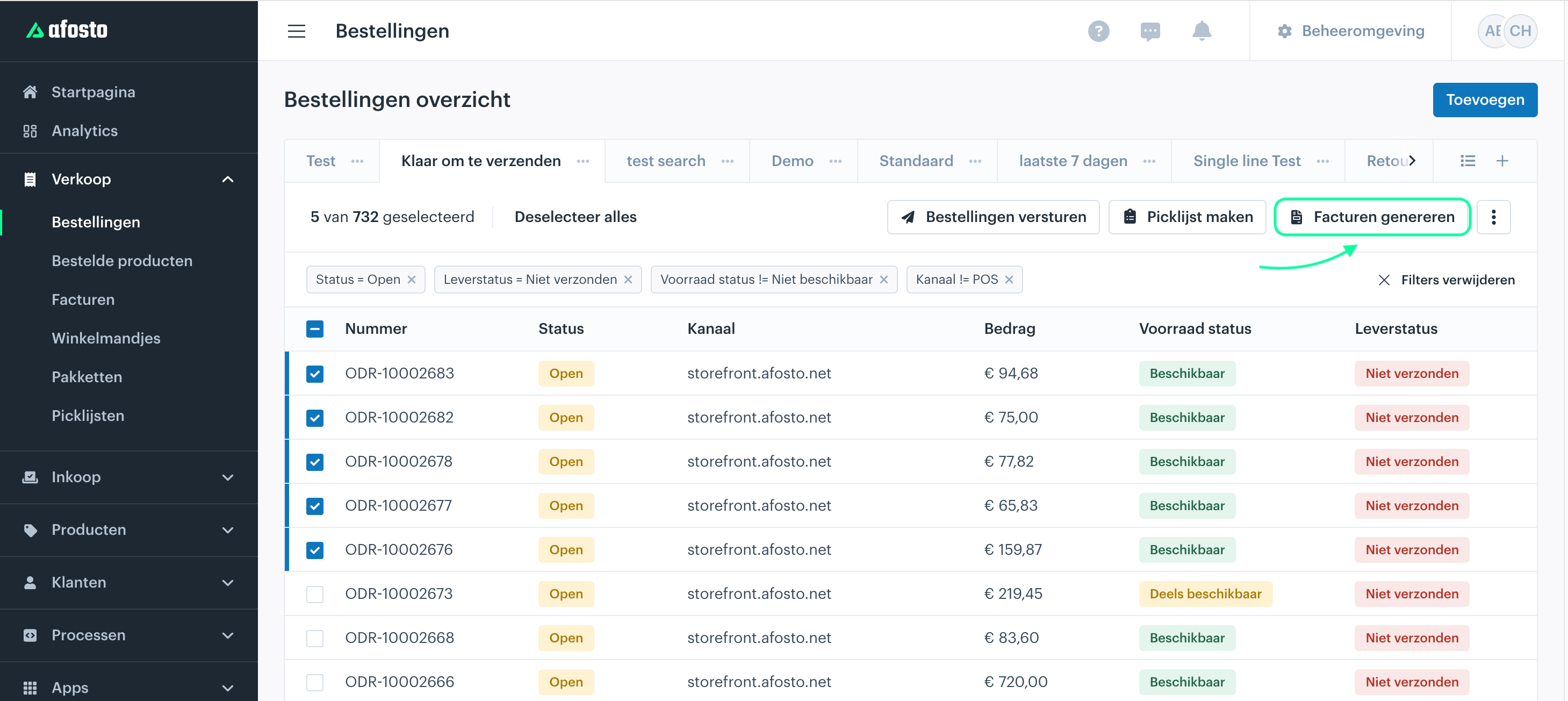
Step 3: Start the Bulk Action
- Click the Generate invoices button (above the grid).
- Wait until the invoices have been created.

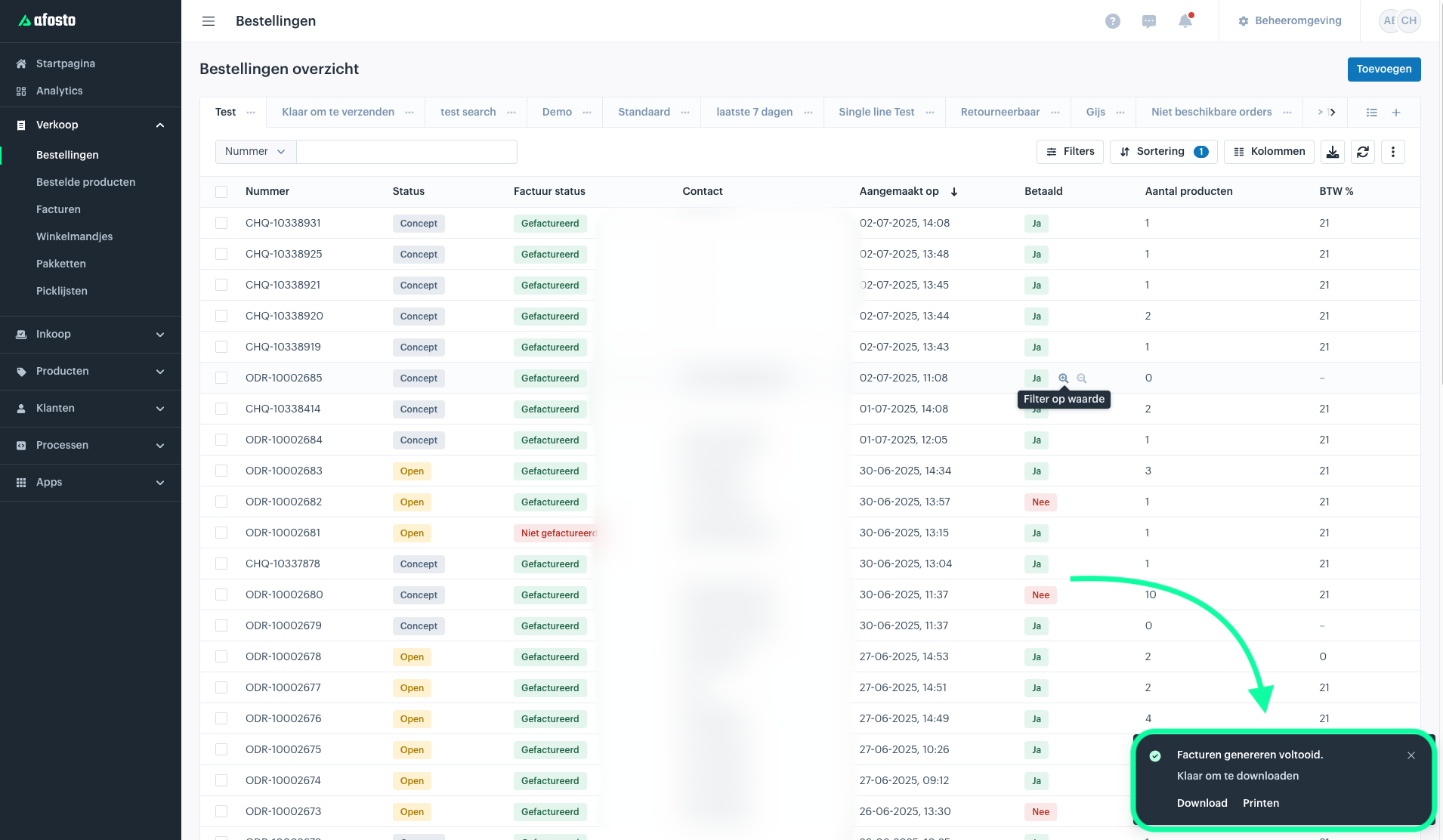
Step 4: Download or Print the Invoices (optional)
- Choose Download or Print.
- The invoices will be sent to the correct printer via the Spooler app, or you can select your regular A4 printer in the print window.